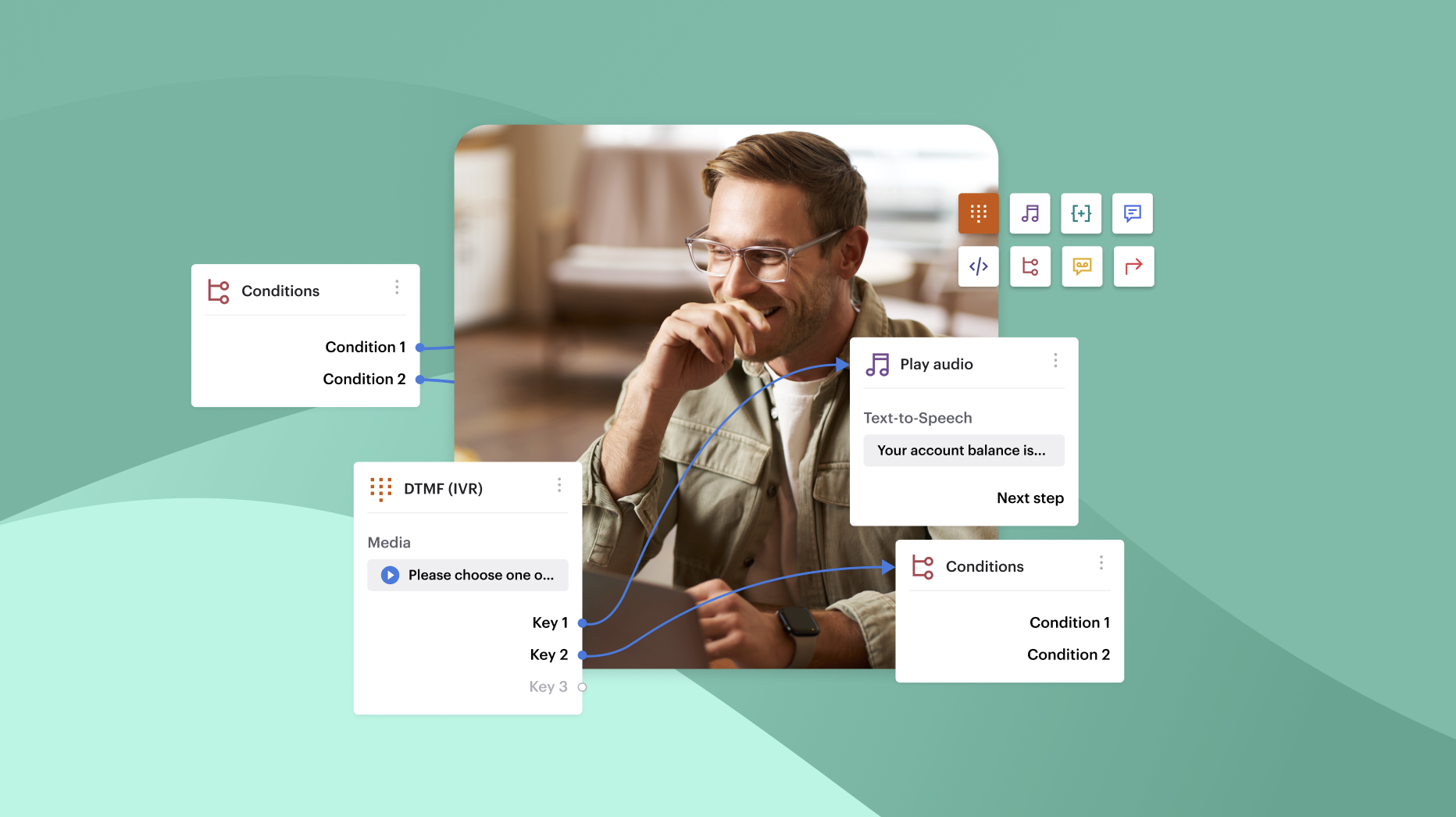


VoIP (Voice over Internet Protocol) enables you to make clear, reliable phone calls directly from your computer, whether you’re working from home, managing a remote team, or running your business on the go.
In this guide, we’ll break down why making calls from your computer is a productivity game-changer, what you need to get started, how VoIP technology actually works, and simple steps to make your first call without any tech headaches.
Key Takeaways
- VoIP enables phone calls from your computer using internet-based apps, no SIM cards or phone lines required, making communication more flexible, scalable, and cost-effective.
- All you need is a headset and internet connection, plus a VoIP app like Voiso, Zoom, Microsoft Teams, or Google Voice to get started making and receiving calls instantly.
- VoIP calling integrates with CRMs and collaboration tools, making it ideal for sales, support, and remote teams who want streamlined workflows and easy access to customer data during calls.
- Optimising your call quality matters: use a wired connection, noise-canceling headset, and a quiet space to ensure crystal-clear audio and a professional caller experience.
- Security and compliance should not be overlooked, choose VoIP platforms that offer call encryption and adhere to regulations like GDPR or HIPAA when necessary, especially for sensitive conversations or call recording.
Why Make Phone Calls from a Computer?
Making calls from your computer is all about working smarter, and of course convenience. You can multi-task during calls—taking notes, pulling up CRM data, or sharing your screen without juggling devices. Many users also experience better audio quality when using high-quality microphones or headsets, ensuring your voice is clear and professional on every call. Plus, VoIP calling on your computer integrates seamlessly with your CRM, calendar, and team chat apps, keeping your workflow connected without the constant switching between devices.
Who uses it?
VoIP calling from your computer isn’t just for tech startups. Remote teams, support agents, consultants, freelancers, and digital nomads all use computer-based calling to stay productive and connected from anywhere. For businesses, it’s a cost-effective way to manage customer calls and internal communications without investing in traditional phone infrastructure, making it an essential tool for modern, flexible operations.
What You Need to Make Calls from a Computer
Essential hardware
Getting started with VoIP calls on your computer is straightforward. All you’ll need is the following:
- A microphone and speakers or, ideally, a quality headset for clear audio.
- A reliable internet connection—broadband is recommended to avoid call drops or audio delays.
That’s it. No complicated installations, no physical phone lines, and no SIM cards required.
Required software or platform
Next, you’ll need a VoIP application or communication platform like Voiso, Zoom, Microsoft Teams, Google Voice, or dedicated VoIP services like RingCentral, or 8×8, that provide a user-friendly interface for dialing, call management, and even SMS or video conferencing.
If you’re using VoIP for sales or client calls, you may also want an optional CRM or contact sync tool to pull up customer information instantly while on calls.
VoIP Technology Explained
What is VoIP?
VoIP stands for Voice over Internet Protocol, which simply means your voice calls are transmitted using the internet rather than traditional phone lines. Your voice is converted into digital data, routed through secure networks, and reassembled on the other end, allowing you to communicate just like a traditional call—but with greater flexibility and often at a lower cost.
How it differs from traditional phone lines
Unlike traditional phone calls, VoIP doesn’t require a SIM card, phone signal, or physical phone lines. All you need is a data connection and a calling interface, meaning you can make and receive calls from your laptop, desktop, or even tablet wherever you have internet access. This way, VoIP is ideal for businesses and individuals who want to untether themselves from a physical office setup.
How to Make Phone Calls from a Computer: Step-by-Step
General steps for any platform
Making a VoIP call from your computer typically takes just a few minutes to set up. Here’s how:
- Install or launch the app of your chosen VoIP platform.
- Connect your microphone or headset and test your audio settings.
- Sign in or create an account if you’re using the platform for the first time.
- Add or import contacts from your email, CRM, or manually.
- Dial or click-to-call the desired contact, and you’re ready to talk.
That’s it. No cables, no manual dialing on a physical keypad—just a few clicks, and you’re live.
Popular Apps to Make Phone Calls from Your Computer
Google Voice
Google Voice offers free calling to the U.S. and Canada, with affordable rates for international calls. It includes voicemail, texting, and number porting, making it a straightforward choice for personal and small business use.
Skype
Skype supports domestic and international calls, with additional video and group conferencing features. It’s widely used for both personal and business calls, allowing you to call landlines and mobiles directly from your computer.
WhatsApp Desktop
WhatsApp Desktop requires syncing with your mobile phone but allows voice and video calls over your computer. It’s ideal for personal calls or light business communication, especially if your contacts already use WhatsApp.
Zoom & Microsoft Teams
Zoom and Teams are primarily known for video meetings, but both platforms offer VoIP calling features. They’re excellent for businesses seeking integrated collaboration tools alongside calling capabilities.
Facebook Messenger & Discord
Facebook Messenger and Discord are both popular platforms for informal communication, voice chatting over data without traditional phone lines. They’re commonly used within social circles, gaming communities, and online groups.
Windows-Specific Options
Microsoft Phone Link App (Formerly Your Phone)
If you use Windows 10 or 11, Microsoft Phone Link lets you connect your Android phone to your PC, allowing you to make and receive calls directly from your desktop, view SMS, and manage notifications seamlessly.
Using VoIP softphones on Windows
VoIP softphones like Zoiper, VoIP.ms, or Voiso desktop apps allow advanced users to set up SIP-based VoIP calling directly on Windows. They’re especially useful for businesses looking for customizable, scalable calling setups.
macOS & iPad Options
FaceTime Audio
FaceTime Audio allows high-quality voice calls over Wi-Fi between Apple devices, making it a convenient option for Mac and iPad users who primarily call other Apple users.
Using VoIP clients on macOS
Apps like Bria, RingCentral, or Voiso work on macOS to provide professional VoIP calling, CRM integration, and advanced call handling for business users.
Browser-Based Calling Tools
Web-Based Dialers
Browser-based dialers let you make calls directly from your web browser without installing software. Examples include Google Meet (voice calls), Dialpad, and Freshdesk, providing quick access to call functionality.
Pros and cons
Browser calling is accessible and easy to use, but may lack advanced call handling features and can be affected by browser permissions or lower call quality compared to desktop apps.
Tips for Better Call Quality from a Computer
Optimise your environment
The environment you call from can make or break your VoIP call quality. Background noise, echo, and distractions can undermine even the best internet connection and hardware. If possible, choose a quiet room with soft furnishings that absorb sound rather than reflect it, reducing echo and background clatter.
A noise-canceling headset can further improve call clarity, filtering out keyboard clicks, chair squeaks, or the hum of a nearby coffee machine. Plus, positioning your microphone correctly (not too close to your mouth to avoid pops, but close enough for clear pickup) ensures your voice sounds professional and pleasant to the listener.
Network stability
Your internet connection is the lifeline of any VoIP call. A strong, stable connection reduces the risk of delays, echoes, or dropped calls mid-conversation. Whenever possible, use a wired Ethernet connection, which offers lower latency and fewer fluctuations than Wi-Fi. If Wi-Fi is your only option, ensure you’re close to your router and avoid competing activities like large downloads or 4K streaming during calls.
Periodically run speed tests to ensure you have sufficient upload and download speeds (aim for at least 1 Mbps upload for stable VoIP calls), and consider Quality of Service (QoS) settings on your router to prioritize VoIP traffic for smoother calls.
Business Use Case: Making Calls at Scale
Outbound sales and support
For businesses, making calls from a computer isn’t just about convenience, it’s about scaling outreach efficiently. Outbound sales teams use VoIP tools paired with power dialers and CRM integrations to increase call volume while maintaining organization and personalization. Support teams, however, leverage VoIP systems to handle high call volumes with features like call queuing, IVR routing, and automatic ticket creation from calls.
VoIP also enables detailed tracking of key metrics, including connect rates, call durations, and response outcomes, allowing managers to monitor rep performance and identify opportunities for improvement. The ability to record calls helps with compliance, training, and quality assurance while building a feedback loop that can continuously improve your scripts and customer interactions.
Tools to consider
Several platforms excel at making calls at scale while maintaining a seamless workflow with your existing systems. Voiso offers advanced predictive and power dialing, CRM syncing, and live monitoring, while Aircall and CloudTalk provide intuitive interfaces with easy setup. Talkdesk and Nextiva add strong analytics and omnichannel capabilities for businesses handling voice, SMS, and chat together, but the choice ultimately depends on your needs.
Whether you’re focused on high-velocity outbound sales, building a responsive support center, or managing a hybrid of both under one roof, the right software can make all the difference to your business.
Security and Privacy Considerations
Protecting conversations
As more business conversations move online, keeping your calls private and secure is critical. Look for VoIP platforms that provide end-to-end encryption for calls, protecting your data from interception during transmission. If your calls involve sensitive client information, such as payment details or personal data, confirm that your VoIP provider is compliant with industry standards like HIPAA for healthcare or GDPR for EU-based customers. Avoid using unsecured or free platforms for sensitive calls, and educate your team on best practices like not sharing private links or access credentials in unprotected channels.
Recording & compliance
Recording calls can improve quality control, aid in training, and provide documentation for client agreements, but you need to be aware of local call recording laws, which vary by country and even by state. Some jurisdictions require all parties on a call to consent to recording (two-party consent), while others only require one party to be informed.
Using VoIP platforms with built-in compliance tools helps manage consent notifications and secure storage of recordings, reducing your legal risk. Additionally, ensure your recordings are stored securely, with access limited to authorized team members, to maintain client confidentiality and meet data protection requirements.
FAQs
Can I make a phone call from my computer without a phone?
Yes, using VoIP apps, you can call directly from your computer without a physical phone.
Is it free to make phone calls from a computer?
Many apps offer free calls, especially within the same platform or to specific regions, though international and off-network calls may have fees.
Do I need a SIM card or mobile number to call from my PC?
No SIM card is needed; you only need an internet connection and a VoIP app.
What are the best apps for international calling from a laptop?
Skype, Google Voice, and VoIP services like Voiso or RingCentral offer affordable international calling.
Can I receive incoming calls on my computer as well?
Yes, many VoIP apps allow you to receive incoming calls on your computer.
What’s the difference between VoIP and traditional calling apps?
VoIP uses internet data to make calls, while traditional calling apps may rely on cellular networks.
How secure are desktop calling platforms?
Security varies; use platforms with encryption and strong privacy practices for safe calls.
Can I make phone calls from my computer using just a web browser?
Yes, browser-based tools like Google Meet and Dialpad allow calls without installing apps.
Further Reading