All Products

.svg)





Yes, you can make a call from a laptop without a phone. You need an internet connection, a microphone or headset, and a VoIP or browser-based calling service. Depending on the provider, you can call other people on the same app or dial regular mobile and landline numbers straight from your laptop, with no SIM card involved.
Thanks to VoIP, making calls no longer means being tied to a clunky desk phone or worrying about your cell signal dropping in the middle of an important conversation.
VoIP (Voice over Internet Protocol) enables you to make clear, reliable phone calls directly from your computer, whether you’re working from home, managing a remote team, or running your business on the go.
In this guide, we’ll cover what you need to get started, how to place your first call, which apps can dial real phone numbers, and how VoIP technology works behind the scenes.
Key Takeaways
- VoIP enables phone calls from your computer using internet-based apps, no SIM cards or phone lines required, making communication more flexible, scalable, and cost-effective.
- All you need is a headset and internet connection, plus a calling app or service to start making and receiving calls.
- Calling another app user and dialing a phone number are different things: messaging apps usually reach people on the same app, while mobiles and landlines need a service connected to the phone network.
- Optimising your call quality matters: use a wired connection, noise-canceling headset, and a quiet space to ensure crystal-clear audio and a professional caller experience.
- Security and compliance should not be overlooked, choose VoIP platforms that offer call encryption and adhere to regulations like GDPR or HIPAA when necessary, especially for sensitive conversations or call recording.
Two ways to make calls from a laptop
Are you trying to reach a friend who uses the same app, or ring an actual phone number? That choice decides which tool you need. App-to-app calling connects you with other people signed in to the same service, while VoIP calling to the public telephone network (PSTN) lets you dial ordinary mobile and landline numbers from your laptop.
| Method | What it lets you call | Physical phone needed? | Typical examples |
| App-to-app calling | Other users on the same platform | Usually not, though some apps rely on a linked phone | WhatsApp Desktop, FaceTime Audio, Microsoft Teams, Messenger, Discord |
| VoIP calling to phone numbers | Mobile and landline numbers | No, the provider carries the call over the internet | Google Voice (US), business VoIP softphones |
| Phone relay from your own mobile | Anyone your mobile can call | Yes, the call runs through your phone and its plan | Microsoft Phone Link, Calls from iPhone on a Mac |
The third row matters most if you genuinely don’t have a phone to hand. Phone Link and Calls from iPhone put the call on your laptop screen, yet the connection still depends on your mobile being nearby and switched on.
What You Need to Call From a Laptop Without a Phone
You need a laptop with a working microphone and speakers (or a headset), a stable internet connection, a calling app or service, and an account with that service. Add calling credit or a paid plan if you want to dial mobile and landline numbers rather than other app users.
Essential hardware
Getting started with VoIP calls on your computer is straightforward. All you’ll need is the following:
- A microphone and speakers or, ideally, a quality headset for clear audio.
- A reliable internet connection: broadband is recommended to avoid call drops or audio delays.
That’s it. No complicated installations, no physical phone lines, and no SIM cards required.
Required software or platform
Next, you’ll need a VoIP application or communication platform that provides a user-friendly interface for dialing, call management, and even SMS or video conferencing.
You won’t need a SIM card or a physical mobile to place calls through most standalone VoIP services, although some providers still ask for an existing phone number to verify your account. As of September 2026, Google’s Voice Help Center describes its no-charge personal plan as available only in the US and requiring a phone number, so check the sign-up rules before you commit to a service.
If you’re using VoIP for sales or client calls, you may also want an optional CRM or contact sync tool to pull up customer information instantly while on calls.
Everything your team needs in one platform
How to Make Phone Calls from a Computer: Step-by-Step
General steps for any platform
Making a VoIP call from your computer typically takes just a few minutes to set up. Here’s how:
- Install or launch the app of your chosen VoIP platform.
- Connect your microphone or headset and test your audio settings.
- Sign in or create an account if you’re using the platform for the first time.
- Add or import contacts from your email, CRM, or manually.
- Dial or click-to-call the desired contact, and you’re ready to talk.
That’s it. No cables, no manual dialing on a physical keypad: just a few clicks, and you’re live.
Popular Apps to Make Phone Calls from Your Computer
Which app should you use? It depends on who you’re calling and where you are. Availability, pricing and account rules change by region and plan, so check each provider’s current documentation before relying on it for important calls.
| Option | Physical phone needed? | Calls regular phone numbers? | Best for |
| Google Voice | No, though sign-up needs a phone number | Yes, from US accounts | Personal calling in the US |
| Microsoft Teams | No | Depends on plan and setup | Workplace calls and meetings |
| Zoom | No | Depends on the calling service added | Meetings and business calling |
| WhatsApp Desktop | Your linked phone must be online | No, WhatsApp users only | Personal app-to-app calls |
| FaceTime on Mac | No for FaceTime Audio; yes for Calls from iPhone | Only through an iPhone relay | Calling other Apple users |
| VoIP softphone | No | Yes, with a provider account | Professional and business calling |
Google Voice
Google Voice works in a web browser on a computer, so you can dial numbers without installing anything. Its no-charge personal plan includes unlimited domestic calls, voicemail transcription and texts for US users, while calls to other countries are charged at the per-minute rates Google publishes. It’s a straightforward choice for personal and small business use.
Skype (retired in 2025)
According to Microsoft Support’s Skype retirement notice, Skype was retired on May 5, 2025, and users were moved to Microsoft Teams Free. Guides that still recommend Skype for calling landlines and mobiles are out of date, although remaining paid users can reach the Skype Dial Pad from the Skype web portal and within Teams Free.
WhatsApp Desktop
WhatsApp Desktop lets you make voice and video calls to other WhatsApp users from your computer, but calls reach WhatsApp contacts rather than ordinary phone numbers. WhatsApp’s Help Center guidance on desktop voice calls says you need an active internet connection on both your computer and your phone, so your mobile stays part of the setup. It’s ideal for personal calls or light business communication, especially if your contacts already use WhatsApp.
Zoom & Microsoft Teams
Zoom and Teams are primarily known for video meetings, but both platforms offer VoIP calling features. They’re excellent for businesses seeking integrated collaboration tools alongside calling capabilities. Whether you can dial ordinary phone numbers depends on the plan and calling service your organization has set up.
Facebook Messenger & Discord
Facebook Messenger and Discord are both popular platforms for informal communication, voice chatting over data without traditional phone lines. They’re commonly used within social circles, gaming communities, and online groups.
How to Call a Mobile or Landline Number From a Laptop
To call a mobile or landline number from a laptop, you need a VoIP service connected to the public telephone network, not just a messaging app. The provider turns your voice into data, carries it over the internet, and hands the call to the regular phone network, so the person you’re calling can answer on any ordinary handset.
- Choose a service that supports outbound calls from your country to the destination you want to reach.
- Create and verify an account, then add a plan or calling credit if that destination isn’t included.
- Enter the full number with its country code, such as +44 for the UK or +1 for the US and Canada.
- Click call and talk through your laptop’s microphone or headset.
The person you ring sees whichever caller ID your provider assigns, which is often a number issued by the service rather than your personal mobile number.
How to Make Calls From a Browser Without Installing an App
Yes, you can call from a laptop without installing software, provided your calling service works in a web browser. You sign in, allow microphone access when the browser asks, and place the call from the tab.
Web-Based Dialers
Browser-based dialers let you make calls directly from your web browser without installing software. Google’s help page on making calls with Google Voice from a computer lists Chrome, Firefox, Edge and Safari as supported browsers, and it also states that Google Voice can’t make emergency calls. WhatsApp’s guidance on voice calls in WhatsApp Web confirms that browser calling works for WhatsApp contacts, while many business VoIP platforms give agents a browser softphone.
Before you start, it helps to know what kind of browser call you’re making:
- Calling another user: services such as WhatsApp Web connect you when both people have accounts.
- Calling a phone number: you need a VoIP service linked to the phone network, such as Google Voice for US users.
- Account and payment: expect to sign in, and to pay for destinations your plan doesn’t cover.
Pros and cons
Browser calling is accessible and easy to use, but may lack advanced call handling features and can be affected by browser permissions or lower call quality compared to desktop apps.
Windows-Specific Options
Microsoft Phone Link App (Formerly Your Phone)
If you use Windows 10 or 11, Microsoft Phone Link lets you connect your Android phone or iPhone to your PC, allowing you to make and receive calls directly from your desktop, view SMS, and manage notifications. Microsoft’s guide to setting up calls in Phone Link explains that the phone connects to the PC over Bluetooth. That makes Phone Link a way to use your laptop as a speaker and dial pad for your mobile, rather than a way to call without one.
Using VoIP softphones on Windows
VoIP softphones such as Zoiper let advanced users set up SIP-based VoIP calling directly on Windows. They’re especially useful for businesses looking for customizable, scalable calling setups, and this walkthrough on how to use a softphone on your computer covers configuration in more detail.
macOS & iPad Options
FaceTime Audio
FaceTime Audio allows high-quality voice calls over Wi-Fi between Apple devices, making it a convenient option for Mac and iPad users who primarily call other Apple users. To dial regular phone numbers from a Mac, Apple’s guide to making and receiving phone calls on Mac and iPad explains that you turn on Calls from iPhone, sign in with the same Apple Account as your iPhone and keep both devices on the same network, so in most setups the iPhone still carries the call.
Using VoIP clients on macOS
Business VoIP clients work on macOS to provide professional VoIP calling, CRM integration, and advanced call handling for business users.
VoIP Technology Explained
What is VoIP?
VoIP stands for Voice over Internet Protocol, which simply means your voice calls are transmitted using the internet rather than traditional phone lines. Your voice is converted into digital data, routed through secure networks, and reassembled on the other end, allowing you to communicate just like a traditional call, but with greater flexibility and often at a lower cost.
How it differs from traditional phone lines
Unlike traditional phone calls, VoIP doesn’t require a SIM card, phone signal, or physical phone lines. All you need is a data connection and a calling interface, meaning you can make and receive calls from your laptop, desktop, or even tablet wherever you have internet access. This way, VoIP is ideal for businesses and individuals who want to untether themselves from a physical office setup. For a fuller picture, see how VoIP compares with PSTN and PBX phone systems.
Tips for Better Call Quality from a Computer
Optimise your environment
The environment you call from can make or break your VoIP call quality. Background noise, echo, and distractions can undermine even the best internet connection and hardware. If possible, choose a quiet room with soft furnishings that absorb sound rather than reflect it, reducing echo and background clatter.
A noise-canceling headset can further improve call clarity, filtering out keyboard clicks, chair squeaks, or the hum of a nearby coffee machine. Plus, positioning your microphone correctly (not too close to your mouth to avoid pops, but close enough for clear pickup) ensures your voice sounds professional and pleasant to the listener.
Network stability
Your internet connection is the lifeline of any VoIP call. A strong, stable connection reduces the risk of delays, echoes, or dropped calls mid-conversation. Whenever possible, use a wired Ethernet connection, which tends to be steadier than Wi-Fi because it avoids wireless interference. If Wi-Fi is your only option, ensure you’re close to your router and avoid competing activities like large downloads or 4K streaming during calls.
Speed matters less than consistency. The FCC’s Broadband Speed Guide, current as of 2026, lists VoIP calls as needing a minimum download speed of less than 0.5 Mbps, though the agency calls its figures rough guidelines, and delay or jitter can still spoil a call on a fast line. Consider Quality of Service (QoS) settings on your router to prioritize VoIP traffic, and if audio still sounds choppy, read up on how network jitter affects VoIP calls.
Security and Privacy Considerations
Protecting conversations
As more business conversations move online, keeping your calls private and secure is critical. Look for VoIP platforms that encrypt calls in transit, and remember that some consumer apps go further: WhatsApp’s calling page states that its voice and video calls are end-to-end encrypted. If your calls involve sensitive client information, such as payment details or personal data, confirm that your provider supports the rules you operate under, such as the HIPAA Security Rule summarized by the US Department of Health and Human Services or the EU’s 2016 General Data Protection Regulation. Avoid using unsecured or free platforms for sensitive calls, and educate your team on best practices like not sharing private links or access credentials in unprotected channels.
Recording & compliance
Recording calls can improve quality control, aid in training, and provide documentation for client agreements, but you need to be aware of local call recording laws, which vary by country and even by state. In the US, the federal Wiretap Act at 18 U.S.C. § 2511 generally permits recording when one party to the call consents, but some states require consent from everyone on the line, and other countries apply their own rules.
Using VoIP platforms with built-in compliance tools helps manage consent notifications and secure storage of recordings, reducing your legal risk. Additionally, ensure your recordings are stored securely, with access limited to authorized team members, to maintain client confidentiality and meet data protection requirements.
Business Use Case: Making Calls at Scale
Why teams call from a computer
Making calls from your computer is all about working smarter, and of course convenience. You can multi-task during calls: taking notes, pulling up CRM data, or sharing your screen without juggling devices. Many users also experience better audio quality when using high-quality microphones or headsets, ensuring your voice is clear and professional on every call. Plus, VoIP calling on your computer integrates with your CRM, calendar, and team chat apps, keeping your workflow connected without the constant switching between devices.
Outbound sales and support
For businesses, making calls from a computer isn’t just about convenience, it’s about scaling outreach efficiently. Outbound sales teams use VoIP tools paired with power dialers and CRM integrations to increase call volume while maintaining organization and personalization. Support teams, however, use VoIP systems to handle high call volumes with features like call queuing, IVR routing, and automatic ticket creation from calls.
VoIP also enables detailed tracking of key metrics, including connect rates, call durations, and response outcomes, allowing managers to monitor rep performance and identify opportunities for improvement. The ability to record calls helps with compliance, training, and quality assurance while building a feedback loop that can continuously improve your scripts and customer interactions.
How Voiso supports teams that call from their computers
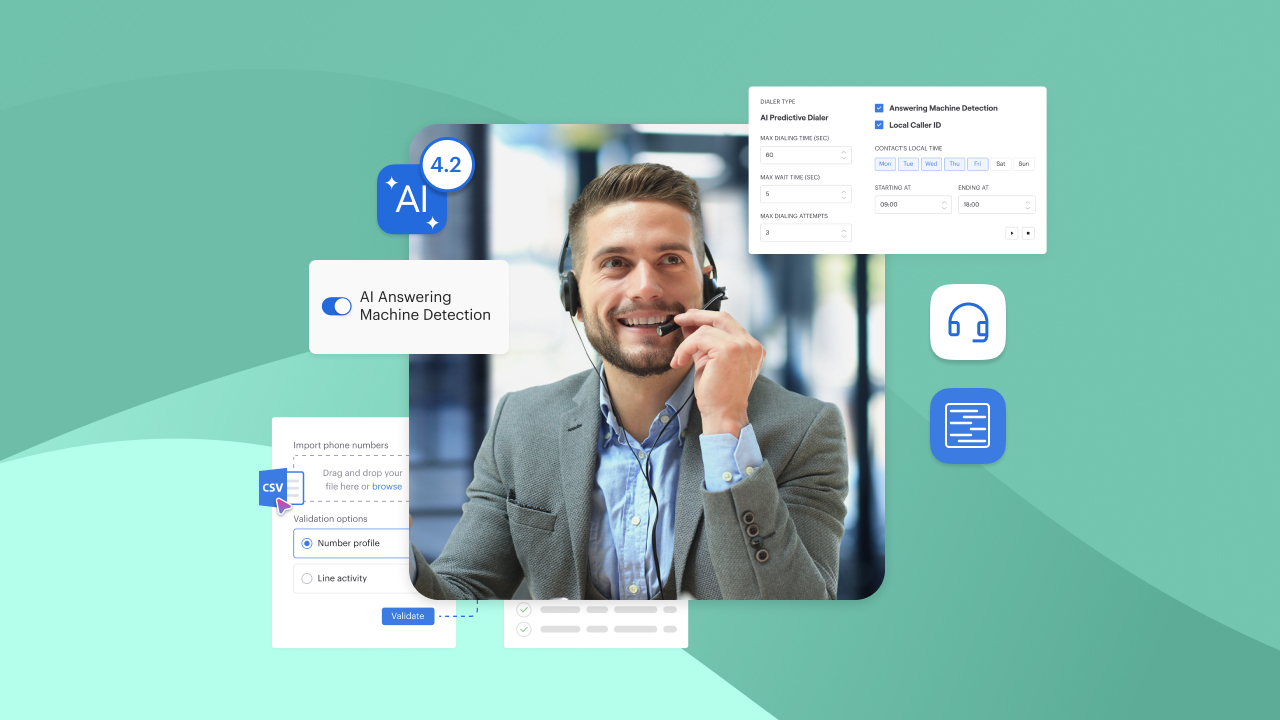
Voiso is a cloud contact center platform for sales, support and collections teams who spend their day on calls from a laptop or desktop. Its cloud-based voice solution gives agents a softphone with automated outbound dialing and inbound call handling, and it sits alongside an AI predictive dialer, local caller IDs available in more than 120 countries, and CRM integrations with Salesforce, HubSpot and Zoho.
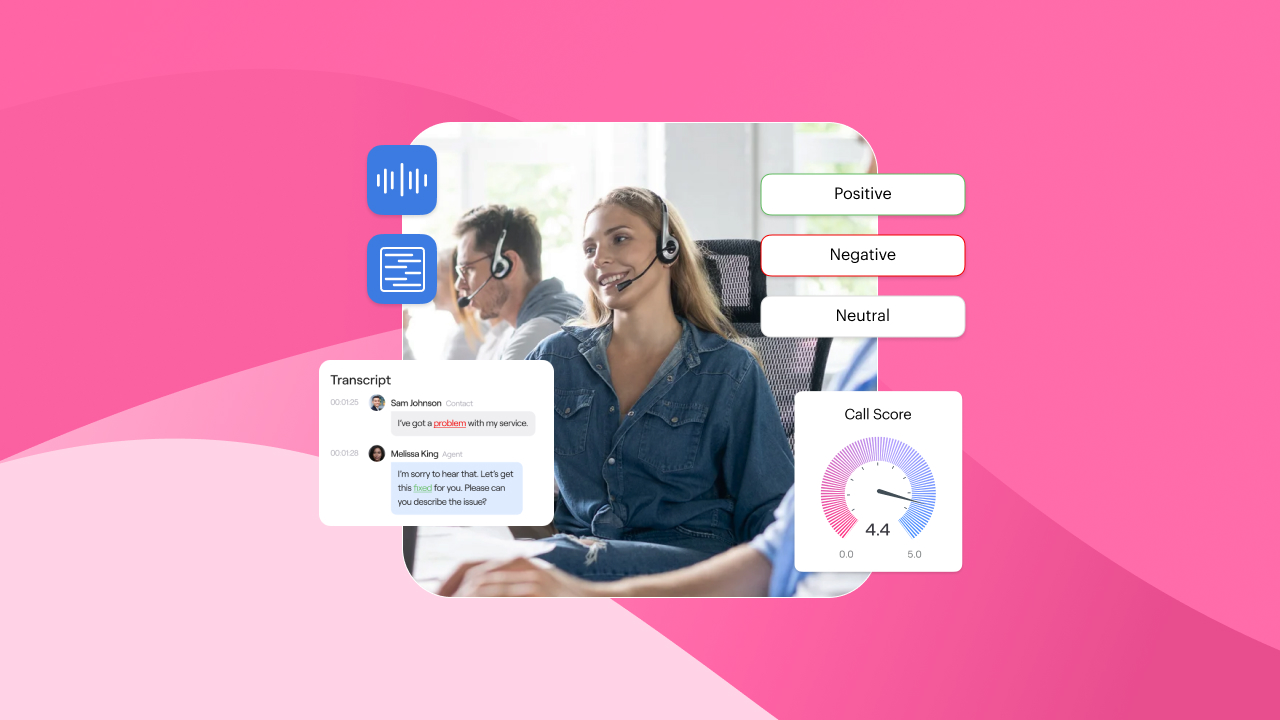
Call quality is handled at platform level rather than left to each agent’s setup. Voiso’s Call Quality Toolkit combines call diagnostics, adaptive routing and geo-redundant infrastructure, while call transcription in 10 languages highlights keywords to simplify QA and compliance checks.
Whether you’re focused on high-velocity outbound sales, building a responsive support center, or managing a hybrid of both under one roof, the right software can make all the difference to your business.
FAQs
Can I make a phone call from my computer without a phone?
Yes. A laptop can place calls without a physical phone or SIM card by sending your voice over the internet with VoIP. You need a microphone or headset and a calling service that supports either app-to-app calls or dialing mobile and landline numbers. The exception is phone relay tools such as Microsoft Phone Link or Calls from iPhone on a Mac, which show the call on your laptop but still route it through your mobile and its plan.
Is it free to make phone calls from a computer?
Often, yes. App-to-app calls on services such as WhatsApp or FaceTime Audio cost nothing beyond your internet data, and some VoIP services include free domestic calling in certain countries. Calls to regular numbers abroad usually cost money, either as per-minute rates deducted from prepaid credit or as part of a paid plan, so compare the countries you actually call before choosing. For options, see our roundup of free international calling apps.
Do I need a SIM card or mobile number to call from my PC?
You don’t need a SIM card, because VoIP calls travel over your internet connection rather than a mobile network. A phone number is a different matter: many services ask for one to verify your account during sign-up, and some tie your caller ID to it. Business VoIP providers usually give you a virtual number instead, so the people you call see a local or company number rather than your personal mobile.
Can I call emergency services from my laptop?
Don’t rely on it. Laptop calling apps are not a like-for-like replacement for a mobile or landline when you need emergency services, and some can’t place those calls at all. Microsoft Support’s 2026 guidance on Phone Link calls says the app isn’t a replacement for your primary telephone service and isn’t required to offer emergency access, while power cuts or lost internet can stop any VoIP call. Keep a charged mobile or landline available for emergencies.
Can I receive incoming calls on my computer as well?
Yes, as long as the calling app is running and signed in when the call arrives. With browser-based services, keep the tab open, because Google’s instructions for receiving Google Voice calls on a computer say notifications only appear while you’re signed in with the browser window open. Desktop softphones can alert you while minimized, and many business VoIP systems ring your laptop, desk phone and mobile app together so calls aren’t missed.
Why can’t the other person hear me on a laptop call?
A common cause is blocked microphone access. Your browser or operating system may be preventing the calling app from using it, or it may be listening to a different input device from the one you’re speaking into, such as a disconnected headset. Check the site or app permissions, pick the correct microphone in the call settings, and run the app’s audio test. If sound cuts in and out rather than disappearing completely, the problem is more likely your network connection.
How much data does a laptop call use?
Very little for audio. Google’s 2026 guidance on making Google Voice calls over the internet says calls use about 0.2 MB of data per minute, although the exact amount depends on network quality and speed, so an hour-long call uses roughly 12 MB on that service. Video calls need noticeably more. Data use only affects cost if you’re calling over a capped mobile hotspot or metered connection, where it’s worth checking your allowance before long calls.
What are the best apps for international calling from a laptop?
The best choice depends on whether the person you’re calling uses the same app. For app-to-app calls, WhatsApp and FaceTime Audio connect contacts abroad over the internet using only data. To reach regular international numbers, you need a VoIP service with published per-country rates, such as Google Voice for US-based users. Businesses calling many countries regularly are better served by a business VoIP platform with local numbers in the markets they serve and clear per-destination pricing.
If your team places and takes calls from laptops all day, Voiso can show you how a cloud contact center handles dialing, caller ID and call quality at scale. Book a demo with Voiso to see how it would work for your agents.
Further Reading
- VoIP vs PSTN vs PBX
- VoIP vs Landline Costs
- Phone Greetings For Businesses
- What Is CTI
- Best Phone Systems For Businesses
- VoIP system set up
- Best VoIP solutions for small businesses
- Free vs paid VoIP services
- UCaaS and CCaaS compared
- Business SMS messaging