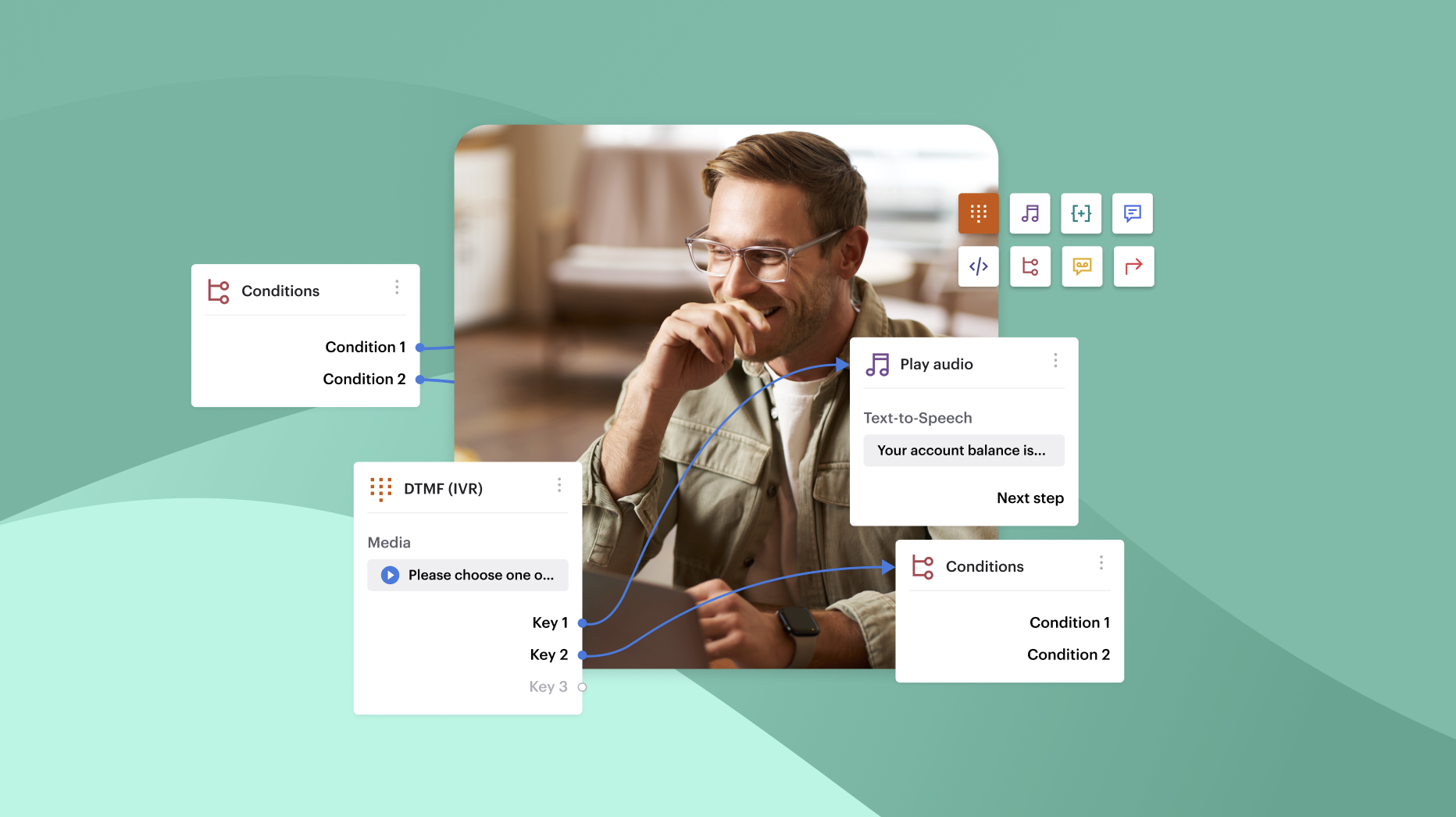


Click-to-call solves that problem by turning every phone number in Salesforce into a live dial button. Instead of switching tabs or typing digits, reps can connect with a single click, while Salesforce automatically logs the call, records outcomes, and links the conversation to the right contact or deal.
For sales managers, this saves time and improves data integrity. Every call becomes traceable, measurable, and ready for analysis, giving teams a complete view of outreach activity inside the CRM.
In this guide, you’ll learn exactly how to set up click-to-call in Salesforce, step by step. We’ll look at the different setup options available, how to connect your phone system or VoIP provider, and how to customize call logging for your workflows.
Let’s start with the basics: what click-to-call actually means inside Salesforce.
Key Takeaways
- Click-to-call simplifies dialing: It turns every phone number in Salesforce into a clickable dial button, no copy-pasting or switching tabs required. Reps can call directly from Lead, Contact, or Opportunity records.
- Data is logged automatically: Every call is instantly recorded in Salesforce, capturing time, outcome, and context, no manual input needed from the rep.
- Faster workflows, more calls: Teams using click-to-call report up to 50% more daily calls by eliminating the friction of manual dialing and logging.
- Two setup paths: Use Salesforce’s Open CTI (requires developer input) or a plug-and-play third-party integration like Voiso (recommended for fast-growing teams).
- Third-party tools offer more: Solutions like Voiso include screen pops, call recording, local caller ID, and AI-powered features like call summaries.
- Setup is no-code but requires admin: Admins must confirm prerequisites (Sales Cloud Enterprise, user licenses, VoIP access) and connect the phone system via API or OAuth.
- Custom call logging is easy: You can tailor fields like Call Outcome and Follow-Up Needed, and use Salesforce Flows to automate tagging and task creation.
- Screen pops improve conversations: Reps see contact details the moment a call starts, deal stage, history, notes, so they can personalize outreach without digging.
- Track performance in dashboards: Use Salesforce reports to monitor call volume, durations, conversions, and rep activity in real time.
- Common issues are fixable fast: Missing buttons or call logs? Usually it’s due to layout configs or permission errors. Voiso’s support helps resolve these quickly.
What is click-to-call in Salesforce?
Click-to-call in Salesforce turns any phone number in your CRM into an instant call trigger. Instead of copying and pasting numbers into a phone or soft dialer, reps click the number directly from a contact, lead, or opportunity record to place a call.
Behind the scenes, this feature connects Salesforce to a phone system using CTI (Computer Telephony Integration). That link allows Salesforce to do more than just place the call. It also passes contact data to the dialer, logs the call automatically in the right record, and can even display relevant details during the call, like past interactions or open opportunities.
When agents no longer need to switch tools or retype information, they make more calls in less time, and those calls are automatically tracked. That means less admin work, more accurate records, and a better foundation for coaching, reporting, and follow-up.
Benefits of using click-to-call for sales teams
Click-to-call gives sales teams back hours they usually lose to repetitive tasks such as dialing numbers, updating records, switching between tools. It streamlines the entire outreach process so reps can spend more time having actual conversations and managers can trust the data behind them. Here’s how:
1. Faster outbound dialing = more conversations
Manual dialing slows reps down. Click-to-call removes that bottleneck. With just one click, a call is initiated from any lead, contact, or opportunity record. Teams using automated dialing tools report making 30–50% more calls per day, simply by removing the friction of manual input.
2. Automatic logging reduces admin work
Every click-to-call interaction can be set to log automatically in Salesforce. This means there’s no need for reps to manually record call times, outcomes, or contact names, cutting down on post-call admin time and ensuring nothing falls through the cracks.
3. Consistent data for coaching and reporting
Logged calls feed directly into Salesforce reports and dashboards. That gives managers a complete view of outreach efforts like call volume, duration, response outcomes, all tied to individual reps or teams. It makes coaching easier and performance tracking more reliable.
4. Real-time screen pops support better conversations
When an inbound or outbound call begins, screen pop features display the contact’s CRM profile instantly. That means reps start every conversation with context like previous interactions, deal stage, or pain points, which are all visible before they say “hello.” No scrambling for notes, no delays.
Salesforce click-to-call setup options
Salesforce supports multiple paths to enable click-to-call, but choosing the right one depends on your sales team’s workflow, volume, and tech stack. Before jumping into the setup process, it’s important to understand the two primary options: Salesforce’s native CTI and third-party integrations.
Option 1: Salesforce Open CTI (native)
Salesforce provides a built-in Computer Telephony Integration framework called Open CTI. It allows you to embed a softphone directly inside the Salesforce UI, so users can click numbers to dial without leaving the platform.
It works best for companies with in-house telephony systems or custom-built VoIP platforms that can plug into the Open CTI interface. However, it requires developer involvement or internal IT to set up and maintain.
Best for: Large orgs with technical resources and existing telephony infrastructure
Option 2: third-party CTI apps (recommended for most teams)
For teams that want faster implementation and broader functionality, third-party integrations are the more flexible option. Providers like Voiso, Aircall, and Dialpad offer ready-made Salesforce apps that embed click-to-call directly into the platform, no custom code required.
These solutions also come with added features like automatic call logging, screen pops, local caller ID, call recording, and AI insights. Most are installed from the Salesforce AppExchange and configured in a few clicks.
Best for: Fast-growing sales teams that need scalability, analytics, and fast onboarding.
How to set up click-to-call in Salesforce (step-by-step guide)
Click-to-call functionality doesn’t require coding, but it does require the right permissions, setup, and connectivity between Salesforce and your phone system. Follow the steps below to get started with either Salesforce’s native option or a third-party CTI like Voiso.
Step 1: check prerequisites and permissions
Before installing anything, make sure the following prerequisites are in place:
- Salesforce edition: You need Sales Cloud Enterprise Edition or higher
- User licenses: Users must have the Salesforce or Salesforce Platform license assigned
- Admin access: You must be a System Administrator to configure CTI
- Objects enabled: Ensure Contacts, Leads, Accounts, and Opportunities are available and accessible by users
- Telephony access: Your company must already use a VoIP or cloud telephony provider (or plan to set one up)
Tip: You can verify user permissions under Setup → Users → Profiles → Object Settings.
Step 2: enable Salesforce CTI or install an integration package
Depending on your setup, you can either use Salesforce’s built-in CTI framework or install a pre-built integration from a trusted provider.
Option A: Enable Salesforce Open CTI (native)
- Go to Setup in Salesforce
- In Quick Find, type Call Centers
- Select Call Centers → click New
- Fill in the CTI Adapter details (provided by your telephony vendor or built internally)
- Save and assign the call center to users under Manage Call Center Users
Tip: Open CTI requires a custom adapter that your developer or provider must supply. Configuration involves embedding a softphone via iframe.
Option B: Install a Third-Party Integration (e.g., Voiso)
- Go to the Salesforce AppExchange
- Search for your CTI provider (e.g., Voiso)
- Click Get It Now and follow the installation wizard
- Once installed, navigate to Setup → Installed Packages
- Locate the package and click Configure to begin setup
- Follow the provider’s step-by-step onboarding to authenticate, connect users, and embed the dialer
Tip: Voiso’s Salesforce integration takes just a few minutes to activate and includes built-in call logging, screen pops, and real-time analytics.
Step 3: connect your phone system or VoIP provider
Whether you’re using Open CTI or a third-party tool, your phone system must be linked to Salesforce. Here’s what admins usually need:
- API credentials or OAuth tokens (provided by your telephony vendor)
- Domain whitelisting: Ensure Salesforce can communicate with your dialer’s domain
- Browser permissions: Enable microphone and pop-up permissions in your browser settings
- User mapping: Assign each Salesforce user to the correct extension or phone identity
Tip: If you’re using browser-based VoIP, check that your corporate network doesn’t block WebRTC connections.
Step 4: test click-to-call functionality
After setup, validate that click-to-call is working:
- Navigate to a Lead or Contact record with a phone number
- Click the number
- A dialer window should appear (native softphone or CTI panel)
- Place a test call
- End the call and confirm:
- A call log entry appears in the record
- Duration, timestamp, and outcome are recorded
- Any screen pop or notes feature worked as expected
Step 5: customize call logging and layouts
Salesforce allows you to tailor what’s logged after a call:
- Go to Setup → Activity Settings
- Enable Enhanced Email and Task Management if not already active
- Add or customize Call Outcome, Call Type, and Follow-Up Needed fields
- Use Page Layouts to control where call logs appear on contact or lead pages
- Create Record Types or Automation Rules (via Flow or Process Builder) to tag or assign calls automatically
Tip: You can also use custom reports and dashboards to track call volume, talk time, or conversion outcomes by rep or team.
Best practices for using click-to-call in Salesforce
Once click-to-call is up and running, small workflow tweaks can have a big impact on sales output and CRM data quality. Here are a few proven strategies to help your team get the most out of the integration.
Automate call outcomes using Salesforce workflows
Manually tagging call results slows reps down. Instead, use automation rules or flows to update outcomes based on call duration, direction, or wrap-up code. For example:
- Auto-assign a “Connected” status for calls over 30 seconds
- Trigger follow-up tasks if “No Answer” is selected
- Auto-close tasks when a successful call outcome is logged
This keeps your pipeline moving without extra clicks from your reps.
Use AI-powered call summaries to save time
Platforms like Voiso offer AI-generated call summaries that sync back to Salesforce after each call. This reduces the need for manual note-taking while giving managers fast visibility into what was discussed.
AI summaries also make it easier to track sentiment, common objections, and keywords for QA reviews, all inside the CRM.
Monitor call activity with custom dashboards
Build a Salesforce dashboard to track the metrics that matter:
- Daily call volume by user
- Average call duration per rep
- Call-to-conversion ratios per lead source
- Follow-up completion rates
This gives sales leaders a quick, accurate view of outreach effectiveness, and helps spot coaching opportunities early.
Tip: Use standard “Tasks and Activities” reports as your data source, filtered by call type.
Train reps to use screen pops for personalization
Most CTI tools (including Voiso) display a screen pop with lead or contact details when a call connects.
Train your team to reference deal stages, notes, or recent activity in their opening lines. It builds trust faster and shortens time-to-value in every conversation.
Common issues and how to fix them
Even with a proper setup, small misconfigurations can break click-to-call functionality. Here are the most common problems Salesforce admins run into, and exactly how to fix them.
Click-to-call button not appearing
Fix: Check that the Phone field is included in the page layout for Leads, Contacts, or Accounts. Also, verify that the CTI softphone is loaded by confirming users are assigned to the correct Call Center in Setup → Call Centers.
If using a managed package like Voiso, ensure the AppExchange component is enabled on the Lightning App Builder layout.
Calls not logging automatically
Fix: First, confirm that your CTI integration supports auto-logging. Then, go to Setup → Activity Settings and ensure that Task Logging is enabled.
For third-party tools, review their configuration page to confirm that logging is turned on and mapped correctly to the right object (e.g., Contact or Opportunity).
Tip: In Voiso, call logs sync automatically to the contact record after each interaction, no manual logging needed.
VoIP connection dropping or not working
Fix: Verify that your organization’s firewall or browser is not blocking WebRTC or your dialer’s domain. Commonly blocked ports or domains can interrupt call initiation.
Also, check if the user’s network is throttling traffic to third-party services. Switching to another browser (like Chrome) or asking your IT team to unblock your phone provider’s domain usually resolves this.
Audio or microphone permission errors
Fix: Make sure your browser has access to the microphone. In Chrome:
- Click the padlock icon next to the address bar
- Set Microphone permission to “Allow”
- Reload the Salesforce tab
Additionally, test with another headset or machine to rule out hardware issues.
Final thoughts: streamlining sales calls in Salesforce
At its core, click-to-call is a foundation for better selling. When reps can launch calls from any record, log outcomes automatically, and see contact details instantly, their entire workflow gets sharper. Managers, meanwhile, get cleaner data, faster reporting, and more visibility into pipeline activity.
Salesforce offers multiple ways to set up click-to-call, from its native CTI to fully integrated solutions like Voiso. Choosing the right path depends on how quickly you want to deploy, how much flexibility you need, and whether advanced tools like AI call summaries and analytics matter to your team.
If you’re ready to take click-to-call further, explore how Voiso’s Salesforce integration adds AI-powered dialing, automated call logging, and real-time performance dashboards to your CRM, all in one seamless view.
| CTA: Move quickly between leads and inquiries with Voiso’s Salesforce integration |
Salesforce click-to-call integration FAQs
Does Salesforce have a built-in click-to-call feature?
Salesforce provides Open CTI, a framework that lets you embed a softphone and enable click-to-call. However, it requires a compatible phone system and technical setup. Most teams prefer third-party integrations for faster deployment and more features.
Do I need Sales Cloud to use click-to-call?
Yes. Click-to-call requires access to core Sales Cloud features, especially the ability to manage leads, contacts, and activities. It’s supported in Sales Cloud Enterprise Edition or higher.
Can I record calls inside Salesforce?
Salesforce itself doesn’t record calls. That functionality comes from your CTI provider. Tools like Voiso offer automatic recording, transcription, and even AI-powered call summaries, all linked back to Salesforce records.
How do I log calls automatically in Salesforce?
Automatic logging is handled by your CTI integration. Once enabled, each call is synced to the relevant lead, contact, or opportunity, including details like duration, direction, and outcome. Some tools also log AI-generated notes for better context.
Why isn’t the click-to-call button showing up?
Make sure the Phone field is visible in your page layout and that the softphone component is active. If using a managed app, check that the package is installed correctly and that users are assigned to the right call center in Setup → Call Centers.