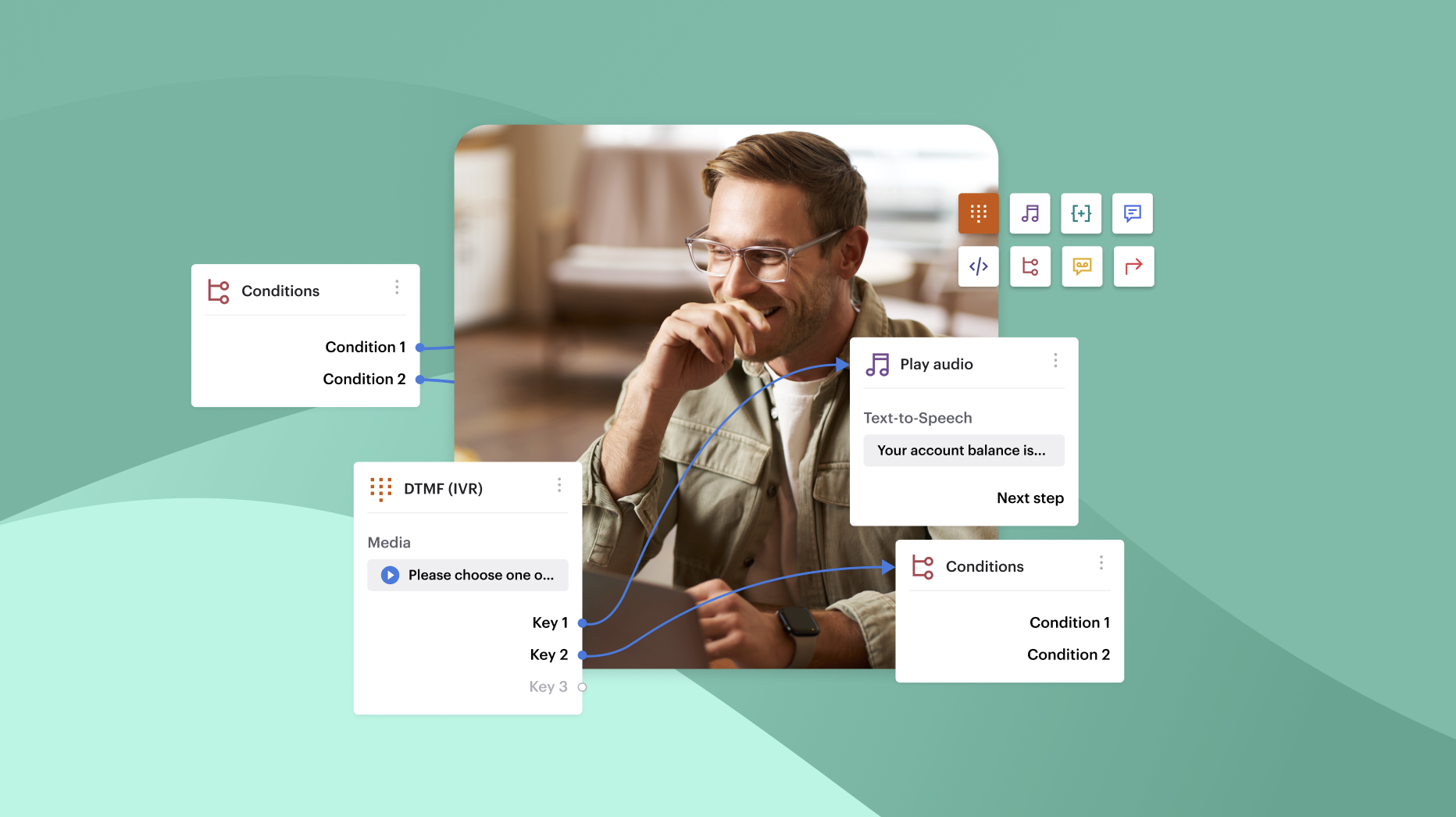


In Pipedrive, click-to-call lets users place a call by simply clicking a phone number inside a lead, deal, contact, or activity view. Instead of toggling between tools or dialing manually, reps connect through a dialer — either Pipedrive’s native Smart Caller or an integrated solution like Voiso.
It’s fast, simple, and built for sales. With fewer steps between intention and action, teams follow up faster, reduce mistakes, and stay focused on closing.
Let’s break down exactly how click-to-call works inside Pipedrive.
What is click-to-call in Pipedrive?
Click-to-call in Pipedrive allows reps to start a call by simply clicking on a phone number — no need to dial manually or leave the CRM. It turns every number in your pipeline into an instant calling action.
You’ll see the call icon next to phone numbers across key views:
- Contact profiles
- Deal cards
- Leads inbox
- Activity lists
Clicking the icon triggers a connected dialer. That could be Pipedrive’s built-in Smart Caller (available on Advanced plans and above) or an integrated provider like Voiso, offering deeper functionality. Once connected, the call starts immediately without switching tools or browser tabs.
Pipedrive supports multiple platforms for handling calls:
- WebRTC-enabled dialers (like Voiso’s browser-based panel)
- External softphones
- Third-party VoIP systems
The benefit? Calls happen faster. There’s less toggling between systems, fewer misdials, and a shorter path between seeing a lead and contacting them. It’s a small UX upgrade that adds real momentum to outbound activity.
Why sales teams use click-to-call in Pipedrive
For outbound teams, click-to-call removes the micro-frictions that slow down prospecting and follow-up. Every extra second between seeing a number and making the call adds up, and click-to-call removes all of them.
Eliminate manual dialing and increase touchpoints
Sales reps can click a number from any lead, deal, or contact record to launch a call. That single action removes the need to copy and paste, switch apps, or check the number twice. Less time between calls means more calls per day — and more chances to connect.
For example, a rep working from the Leads Inbox clicks the number on a new contact card. The call launches instantly, and they’re back to the list within seconds, ready for the next.
This fast rhythm is essential during outbound sprints, where momentum drives results. The more seamless the workflow, the more conversations reps can start.
Accelerate follow-up in the sales pipeline
In Pipedrive’s Deal View, every phone number is one-click away. Reps can follow up directly from a deal card, without leaving the context of the pipeline. This makes it easy to stay on top of hot leads, especially for time-sensitive follow-ups.
For inbound leads, every minute counts. When a rep responds in under five minutes, the odds of a meaningful conversation increase dramatically. Click-to-call removes the lag between intent and action, which is often where deals go cold.
Reduce errors and maintain clean data
Manual dialing leads to misdials, missing call logs, and scattered notes. Click-to-call eliminates all of it. When a rep clicks to call from a lead or deal, the call is automatically tied to that record along with the duration, disposition, and notes.
For instance, a call initiated from the Activities tab logs directly into the deal timeline, creating a clear record of contact without the rep having to do anything extra.
The result is clean data, consistent timelines, and accurate reporting — all without slowing your team down.
How to enable click-to-call in Pipedrive
Getting started with click-to-call in Pipedrive is straightforward, whether you’re using the built-in Smart Caller or connecting to a more advanced solution like Voiso. Below are the two most common paths, depending on your team’s needs and setup.
Option 1: use Pipedrive’s built-in caller (smart call)
Pipedrive offers a native dialer called Smart Caller, available on Advanced plans or higher. It lets reps call directly from the CRM using browser-based voice calling.
To enable:
- Go to Tools and apps > Calling in your Pipedrive settings.
- Toggle on Smart Caller and assign a calling package.
- Choose your caller ID (if supported in your region).
- Set your default call method in personal settings to make click-to-call the default action.
While it’s simple to activate, Smart Caller has some limitations. It’s only supported in select countries, offers limited analytics, and lacks features like conversation scoring, voicemail drop, or call routing.
Option 2: use Voiso or other integrated CTI tools
For teams that need more than basic calling, Voiso offers a full-featured contact center integration that connects directly to Pipedrive.
To set it up:
- Visit the Pipedrive Marketplace and search for Voiso Contact Center.
- Click Install Now and follow the prompts to link your Voiso account.
- In Voiso, enable Pipedrive integration from the settings panel.
Once connected, your reps can:
- Use an AI-powered dialer with local caller ID and screen pop features.
- Automatically log calls, notes, and recordings into deal and lead records.
- Score conversations, track performance, and coach reps in real time.
Pipedrive also allows admins to define default call providers across the team and manage access permissions by user or role, making it easy to standardize workflows across sales units.
How click-to-call fits into Pipedrive sales workflows
It’s true click-to-call is a dialer shortcut. However, it’s also a core part of how sales teams move faster and sell smarter inside Pipedrive. It works seamlessly across the CRM, aligning with activity-based selling by helping reps take more actions, in less time, with better context.
Calling from the Leads Inbox or Contact List
Reps working high-volume outbound lists can launch calls directly from the Leads Inbox or Contacts view. Clicking the phone icon next to a number connects them instantly—no switching screens or copy-pasting required.
This flow is especially valuable during outbound blocks, where minimizing delays between calls keeps momentum up. It’s tap → talk → move to the next lead. Fast, repeatable, and fully trackable.
Calling from a Deal View
Inside the Deal View, click-to-call keeps reps working in context. A rep reviewing a stalled opportunity can place a call right from the deal card, then update notes or move the deal forward, all without leaving the screen.
During pipeline reviews or follow-up days, this helps reps stay focused. Instead of bouncing between apps, they’re taking action right where the opportunity lives.
Logging calls and notes automatically
Every call made through click-to-call logs directly into Pipedrive — complete with duration, outcome, and notes. Whether the call starts from a deal, lead, or activity, it syncs to the right place automatically.
There’s no need for reps to write “left voicemail” or “call back Tuesday” in a separate field. With integrated tools like Voiso, even call recordings and AI-generated summaries are saved to the deal timeline.
This automatic logging supports activity-based selling at its best, where every interaction is captured, every step is visible, and no follow-up slips through the cracks.
How to combine click-to-call with Pipedrive’s automation tools
Click-to-call simplifies how reps make calls. But when paired with Pipedrive’s automation tools, it becomes a driver of consistency, speed, and smarter follow-up, without adding to anyone’s workload.
Pipedrive lets you use call activity as a trigger in automations. That means every answered call, missed call, or logged outcome can set another action in motion. Here’s how to make it work.
Trigger follow-up emails after missed calls
Missed calls don’t have to end in silence. With automation, you can trigger a follow-up email anytime a call goes unanswered.
For example, if a call is marked as ‘No Answer’ → send a pre-written follow-up email after 15 minutes.
This keeps your brand responsive, even when the rep can’t immediately reconnect — and ensures you’re staying on top of every opportunity.
Auto-assign tasks based on call outcomes
You can use call results to trigger internal tasks. Whether it’s scheduling a follow-up or escalating a lead, automations make sure every call leads to the right next step.
For example, if the call outcome = ‘Interested, not ready’ → assign a follow-up task for 3 days later.
Reps stay focused on live conversations while the system handles the admin behind the scenes.
Use call activity as a condition in Pipeline automations
Want to push deals forward only after a real conversation? Call activity can act as a condition for pipeline movement or stage-specific actions.
For instance, if a call is logged AND the deal is in ‘Contact Made’ stage → move the deal to ‘Follow-Up Scheduled’.
This helps maintain clean, accurate pipelines and reflects true deal progress—not just CRM updates.
Tag contacts based on call engagement
Call frequency and responsiveness tell you a lot about lead quality. By tagging contacts based on engagement, you can segment audiences more effectively for future campaigns.
For example: if the contact has 3+ calls in 10 days → tag them as ‘High Engagement’.
Later, you can filter by tag to prioritize leads for nurture, escalation, or outreach sequences.
Key features to look for in a Pipedrive click-to-call solution
Not all click-to-call tools are created equal. While Pipedrive’s native Smart Caller is a great starting point, many sales teams outgrow its basic functionality quickly. If you’re evaluating a third-party solution, these are the key features to prioritize:
- Local caller ID support: Improves answer rates by matching your outbound number to the recipient’s region.
- Voicemail drop or Answering Machine Detection (AMD): Speeds up outbound campaigns by letting reps skip voicemails or auto-leave pre-recorded messages.
- AI-powered summaries or call scoring: Helps managers track rep performance, understand customer sentiment, and review calls faster.
- Call recording and compliance options: Crucial for regulated industries. Look for tools that offer encrypted storage, pause/resume recording, and support for GDPR or PCI-DSS compliance.
- Number masking and privacy controls: Essential for teams managing sensitive data or working across distributed teams.
- SMS integration: Enables reps to follow up instantly with links, reminders, or confirmations — especially useful when calls go unanswered.
Voiso supports all of the above, directly integrated into Pipedrive. For teams that rely heavily on calling, having these features built into your workflow can mean tighter compliance, better coaching, and more closed deals — without more clicks.
Final thoughts: speed, simplicity, and sales success
Click-to-call strips away the friction between your reps and your revenue. It keeps conversations flowing, removes time-wasting steps, and ensures every call is tracked right where it belongs: inside Pipedrive.
On its own, the feature delivers faster dialing and cleaner data. But when paired with a full-featured dialer like Voiso, it becomes a high-impact part of your sales engine — complete with AI-powered logging, local caller ID, and real-time coaching tools.
Want AI call logging, smart routing, and faster dialing in Pipedrive? Explore Voiso’s click-to-call integration today.
FAQs about click-to-call in Pipedrive
Is click-to-call available on all Pipedrive plans?
No. Native click-to-call with Smart Caller is only available on the Advanced plan or higher. Third-party integrations like Voiso can be used across plans, depending on provider compatibility.
Do calls log automatically in deals or contacts?
Yes. When using Smart Caller or an integrated CTI tool like Voiso, calls are automatically logged in the associated deal, lead, or contact record, along with duration and notes.
Can I use my own VoIP provider with Pipedrive?
Yes. Pipedrive supports third-party VoIP systems through integrations. Providers like Voiso offer direct connectors via the Pipedrive Marketplace.
Can calls be recorded and attached to a deal?
With supported integrations, yes. Voiso, for example, automatically records calls and stores them within the deal timeline for easy access and compliance tracking.
Does click-to-call work from mobile devices?
Native click-to-call in Pipedrive is designed for desktop use. However, if your integrated dialer (like Voiso’s mobile app) supports mobile functionality, you can initiate and log calls on the go.