

That’s where click-to-call in HubSpot changes the game. With one click, sales reps can initiate calls directly from contact records, deals, tasks, or any view where a number appears. No toggling between apps, no dialing delays, and no chance of forgetting to log the outcome.
But using click-to-call effectively goes beyond just clicking a phone icon. To truly streamline your outreach, you need the right setup, the right calling provider, and, when your team scales, the right integrations that go further than HubSpot’s native tools.
This guide breaks it down: what click-to-call in HubSpot really means, how to enable it, and where native tools fall short. Whether you’re a RevOps lead trying to improve pipeline speed, or a sales manager looking to help your team hit higher call volumes, you’ll walk away with a clear understanding, and a practical path forward.
Let’s start with the basics.
Key Takeaways
- Click-to-call eliminates friction: Reps can initiate calls directly from contact, deal, or task records without switching apps or manually dialing.
- Two options exist: Use HubSpot’s native calling with limited minutes, or integrate a VoIP tool like Voiso for deeper functionality.
- Voiso integration adds power: Features like AI call summaries, voicemail detection, and local caller ID make outbound calling smarter and faster.
- Setup is quick: Connecting Voiso to HubSpot takes minutes via OAuth, with automatic logging and full CRM sync included.
- Native HubSpot calling has limits: No AI, no voicemail detection, capped minutes, and basic analytics only.
- Train and structure for consistency: Use call snippets, notes templates, and custom outcome labels to make rep actions repeatable and reportable.
- Automate next steps: HubSpot workflows can trigger follow-ups or enroll contacts into sequences based on call outcomes.
- AI enhances coaching: Voiso provides sentiment analysis, topic detection, and talk-time ratios to help managers coach efficiently at scale.
- Fix common issues easily: Most click-to-call problems come from browser permissions, field types, or integration setup, all quick to resolve.
- Go beyond the basics: Native tools are a solid starting point, but Voiso transforms click-to-call into a scalable, insight-rich outbound engine.
What is click-to-call in HubSpot?
In HubSpot, click-to-call means placing a call directly from a contact, company, deal, or task record, no copying, pasting, or leaving the CRM. If a number is stored in HubSpot, a small phone icon appears next to it. Clicking that icon launches a call, either through HubSpot’s native calling feature or a connected third-party provider.
For reps working across dozens of records each day, this function eliminates small but costly steps: switching tabs, manually dialing, or retyping notes after the call. Instead, everything happens inside the record. Start the call, take notes, log the outcome, and move on to the next lead, all without ever leaving the workspace.
There are two ways to use click-to-call in HubSpot:
- Native HubSpot Calling: Built-in and available on most plans, this lets users make outbound calls using HubSpot’s interface. Call minutes are limited based on the plan, and some advanced features may not be available.
- Third-Party VoIP Integrations: Platforms like Voiso integrate directly with HubSpot to offer deeper functionality, such as local caller ID, voicemail detection, AI call summaries, and more. These tools use HubSpot’s interface but enhance it with more calling power and customization.
For sales teams, click-to-call is a way to reduce friction in the workflow, improve call speed, and automatically tie call data back to the CRM. This ensures every interaction is tracked and actionable.
How to use HubSpot’s native click-to-call feature
HubSpot includes built-in calling tools that let your team place outbound calls without leaving the CRM. It’s a fast way to get started, especially for small teams, but there are a few setup steps to get it working properly.
Step 1: check your HubSpot plan and calling limits
HubSpot offers native calling across all plan tiers, but each comes with different usage limits. Before you start, confirm what’s included in your plan:
- Free & Starter: Up to 15 minutes of calling per user per month
- Professional: 500 minutes per user per month
- Enterprise: 2,000 minutes per user per month
Minutes are pooled across the account, and only outbound calls made through HubSpot’s dialer count against the limit. If your team is dialing at scale, you’ll likely need either a higher-tier plan or a connected calling provider.
Step 2: set up a calling provider
To make calls, each user needs to connect a phone number. HubSpot offers two main options:
- HubSpot-provided number: Ideal for testing or low-volume teams. You can claim a temporary number for outbound use.
- Connect your own provider: HubSpot supports third-party VoIP services like Voiso. These integrations allow you to route calls through your preferred system while still using HubSpot’s interface.
To add a provider:
- Navigate to Settings > Calling.
- Click Connect a provider.
- Follow the prompts to authorize access and map call settings.
For platforms like Voiso, the integration uses OAuth to sync with HubSpot, enabling click-to-call, call logging, and access to advanced features like AI call scoring and auto-logging.
Step 3: start calling from contact records
Once setup is complete, your team can call from anywhere a phone number appears. This includes:
- Contacts
- Companies
- Deals
- Tasks
Next to each phone number, HubSpot displays a phone icon. Clicking it launches the call window, where reps can choose a number, start the call, take notes, and log the outcome, all from a single screen. The call and notes are saved to the timeline automatically, keeping records clean and up to date.
This built-in system is simple and functional, but for teams that rely heavily on outbound outreach or need deeper analytics, there are limits. We’ll cover those next.
Limitations of HubSpot’s built-in calling functionality
HubSpot’s native click-to-call feature is a convenient starting point, but for growing sales teams or outbound-heavy workflows, it can quickly feel restrictive.
Here’s where the built-in tool falls short:
- Monthly call minute limits: Even on the Enterprise plan, users are capped at 2,000 minutes per month. For teams making dozens of calls daily, these limits are easy to exceed.
- No AI-powered insights: HubSpot doesn’t provide sentiment analysis, topic detection, or AI summaries. Reps and managers must review calls manually, which slows down coaching and QA.
- No voicemail detection: Every call attempt connects, even when it hits voicemail. This drains time from reps and skews call performance metrics.
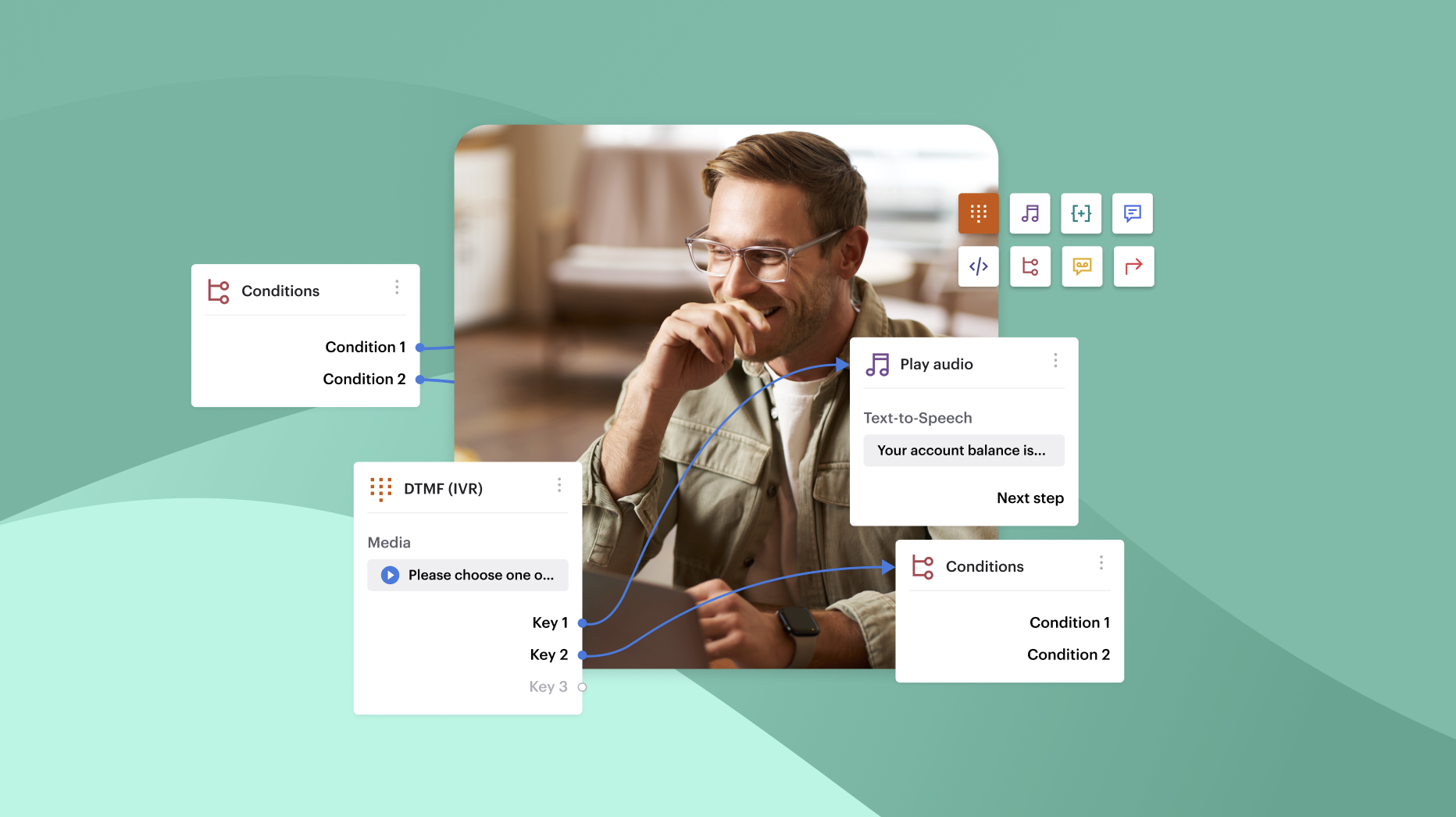
- Limited call routing and IVR options: There’s no built-in support for routing rules, call queues, or multi-level IVR flows. This makes it harder to manage high-volume or region-specific calls.
- Scaling is manual: Expanding across global teams often means juggling time zones, caller IDs, and compliance needs. HubSpot doesn’t offer granular control over those variables.
- Basic analytics: Reporting is limited to call volume and outcomes. There’s no way to score calls, track talk ratios, or surface coachable moments without exporting data elsewhere.
These aren’t flaws, they’re simply the limits of a system built for simplicity. But if your team is scaling, needs to improve contact rates, or wants to make smarter decisions with call data, it’s worth looking beyond native tools.
Next, we’ll explore how a VoIP integration can turn click-to-call into a more powerful engine for outreach and insight.
How to enhance click-to-call in HubSpot with a VoIP integration
For sales teams that rely on outbound calling or need richer insights, adding a VoIP integration to HubSpot unlocks a more advanced, and scalable, calling experience. Native tools handle the basics. Integrated tools handle real-world sales complexity.
Here’s how to extend HubSpot’s click-to-call capabilities with a VoIP platform.
Step 1: choose the right calling tool for HubSpot
Not all dialers play well with HubSpot. When evaluating VoIP providers, look for these key features:
- Native HubSpot integration (not just Chrome extensions)
- Automatic call logging with timeline sync
- Local or dynamic caller ID options
- Support for international numbers
- Built-in analytics or call scoring
- AI features like call summaries or keyword detection
- Voicemail detection or answering machine bypass
Voiso is built specifically for high-volume sales teams using HubSpot. It offers a native integration that connects directly to your CRM records, logs calls automatically, and surfaces insights through AI-powered summaries, sentiment analysis, and customizable outcomes. It’s designed to scale alongside your outreach efforts, without complicating your reps’ workflow.
Step 2: install and authorize the integration
Setting up Voiso inside HubSpot takes just a few minutes. Here’s what the process looks like:
- In Voiso, go to Integrations > HubSpot.
- Click Connect and follow the OAuth flow to authorize access.
- Grant Voiso the necessary permissions:
- Read and write access to contacts, deals, companies
- Timeline activity write access for call logging
- Workflow integration (optional for automations)
Once connected, Voiso becomes an embedded calling option across your CRM. Calls can be initiated directly from contact views, and outcomes are instantly synced back to HubSpot, no manual entry needed.
Step 3: train your team and customize logging
Once Voiso is integrated with HubSpot, the final step is preparing your team and configuring the platform to match your workflows. This means aligning your data, tracking outcomes consistently, and turning every call into a learning opportunity.
Start with team onboarding:
- Show reps how to launch calls directly from HubSpot records
- Walk through how call notes and outcomes are auto-logged
- Reinforce best practices around follow-ups and tagging outcomes
Then configure your CRM logging and analytics:
- Define custom call outcome labels (e.g., “Left voicemail,” “Qualified lead,” “Follow-up scheduled”)
- Enable auto-logging for calls, durations, and notes in the HubSpot timeline
- Create dashboards to visualize rep activity, talk ratios, and performance trends
Best practices for using click-to-call in HubSpot
Click-to-call helps sales teams turn every call into a measurable, repeatable part of the sales process. To get the most out of it, teams need more than a working dialer. They need structure, consistency, and insights built around the activity.
Here’s how to move from “just calling” to smarter selling inside HubSpot.
Use saved snippets and notes templates
Don’t let your reps waste time writing the same phrases over and over. Set up saved call snippets and pre-built note templates that align with your typical call types, introductory outreach, follow-ups, or qualification calls.
Snippets help reps stay focused on the conversation. Templates make post-call logging faster and more consistent.
Tie calls to workflows and follow-ups
A single call should never be a dead end. Use HubSpot workflows to automatically trigger the next step, such as assigning a follow-up task if the call outcome was “Interested” or enrolling a contact into a nurture sequence after a missed call.
This ensures no lead goes cold and that reps don’t have to manually set reminders.
Turn call outcomes into reporting fuel
Customize your call outcome fields to reflect your actual funnel stages. Go beyond “Connected” or “Left Voicemail” and include options like “Qualified – Send Proposal” or “Not Ready – Recheck in 30 Days.”
Then build dashboards to track:
- Outcome rates by rep
- Time to first call
- Calls per lifecycle stage
- Average number of touches per closed deal
Use AI summaries to improve coaching
Manual call reviews don’t scale. Instead, leverage AI-powered call summaries and sentiment analysis to get a quick read on what happened, and how it went.
Managers can scan dozens of calls quickly, spot trends in tone or phrasing, and use that insight to coach more effectively.
Look for tools that break down talk-time ratios, detect key topics, and highlight moments where reps need support. Over time, you’ll build a playbook based on real interactions, not guesswork.
Common issues with HubSpot click-to-call and how to fix them
Running into problems with click-to-call in HubSpot? Most issues come down to setup or browser permissions, and they’re usually quick to resolve. Here’s a list of the most common issues and how to fix them.
Can’t make calls
Fix: Check if a calling provider is connected under Settings > Calling. If you’re using HubSpot’s native tool, make sure a phone number is assigned. For third-party tools like Voiso, confirm that the integration is active and properly authorized.
Call button not showing on contact records
Fix: Make sure the phone number is stored in the correct field type (Phone or Mobile Phone). If you’re using a third-party dialer, confirm that it’s fully synced and that your browser extension (if required) is active.
Calls not being logged
Fix: Check your logging settings in HubSpot. For integrations, ensure that write permissions were granted during setup. Also, confirm that the call was completed, abandoned or dropped calls often aren’t logged automatically.
Audio issues or one-way sound
Fix: Verify that your browser has microphone access enabled. Use Chrome for best compatibility. If you’re using a VoIP provider, check your network and firewall settings, VoIP calls require specific ports to remain open.
Final thoughts: bringing your sales team closer to the customer
Click-to-call in HubSpot helps remove friction so reps can stay present, productive, and focused on the person on the other end of the line.
Used well, it becomes the backbone of a faster sales workflow: fewer clicks, cleaner data, and smoother handoffs. HubSpot’s native calling tools offer a great starting point. But for teams that rely on calling to move pipeline, integrating a purpose-built VoIP platform unlocks the next level, more calls made, better insights captured, and fewer missed opportunities.
If you’re ready to upgrade your call workflows, explore how Voiso can bring AI-powered click-to-call, auto-logging, and deeper analytics to your HubSpot CRM, all without changing the way your team works.
| CTA: Stay focused on selling with Voiso’s HubSpot integration |
FAQs about click-to-call in HubSpot
Can you use click-to-call in HubSpot for free?
Yes. HubSpot’s Free and Starter plans include basic click-to-call functionality. Users can claim a HubSpot-provided number and place calls directly from contact records. However, monthly calling minutes are limited (15 minutes per user on the free plan), and features like call logging and analytics are minimal.
Does HubSpot record phone calls?
Call recording is available on HubSpot’s Sales Hub Professional and Enterprise plans. Admins can enable recording under Settings > Calling, and reps will see a record toggle when placing calls. Always ensure call recording complies with local regulations before enabling it.
What VoIP providers work best with HubSpot?
HubSpot supports several VoIP integrations, including popular options like Voiso. For teams that need AI features, voicemail detection, or advanced call logging, Voiso offers a native integration purpose-built for sales workflows inside HubSpot.
How do I track call performance in HubSpot?
You can track calls using custom reports or activity dashboards in HubSpot. For deeper insights, integrate a VoIP provider that logs outcomes, durations, and scores directly into HubSpot. Platforms like Voiso also offer real-time dashboards and AI-powered call scoring.
Can I use click-to-call in sequences or workflows?
Click-to-call itself isn’t automated in workflows, but you can use sequences to schedule calls and assign follow-up tasks. HubSpot will notify the rep when it’s time to place the call, and clicking the phone icon from the task will launch the dialer.